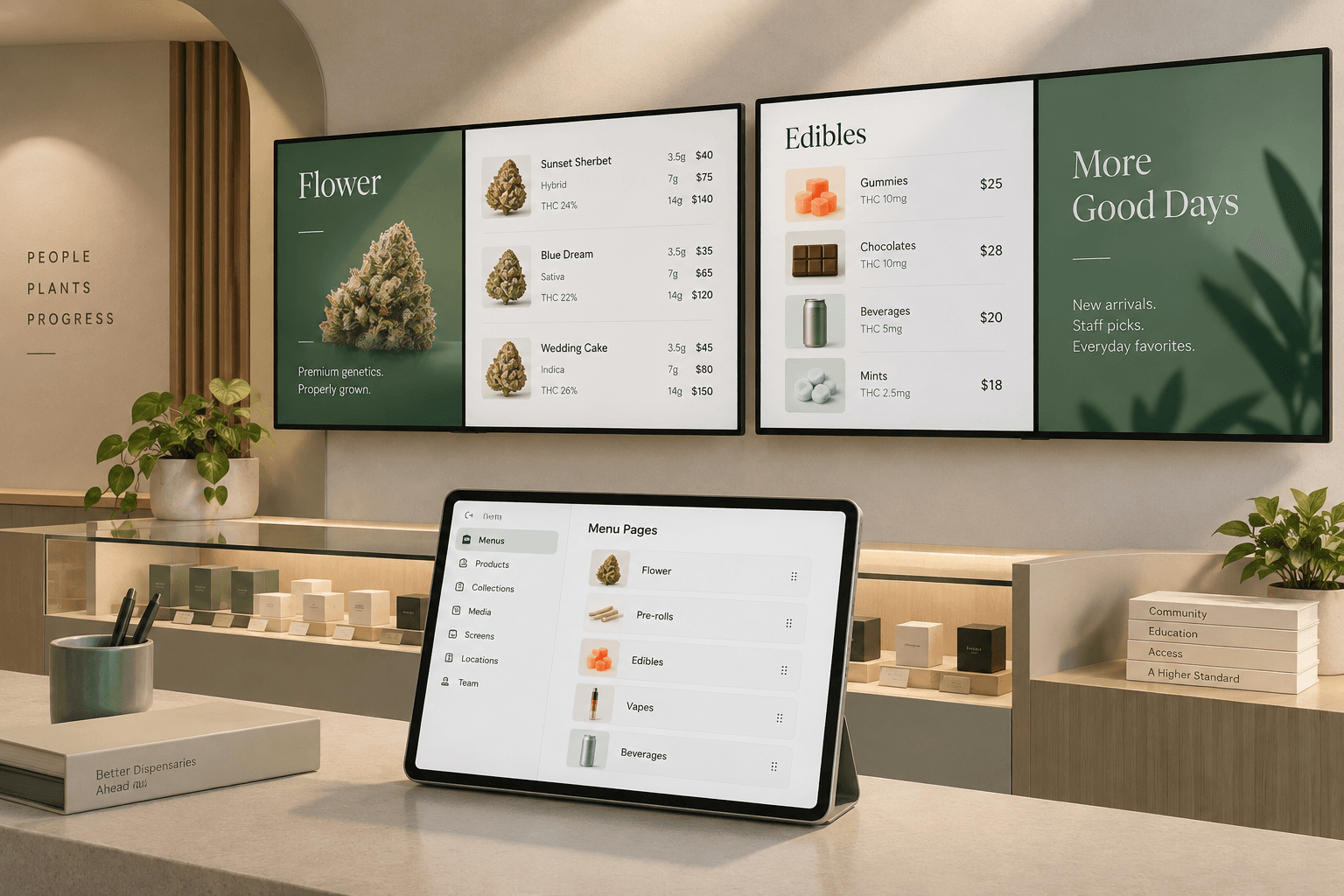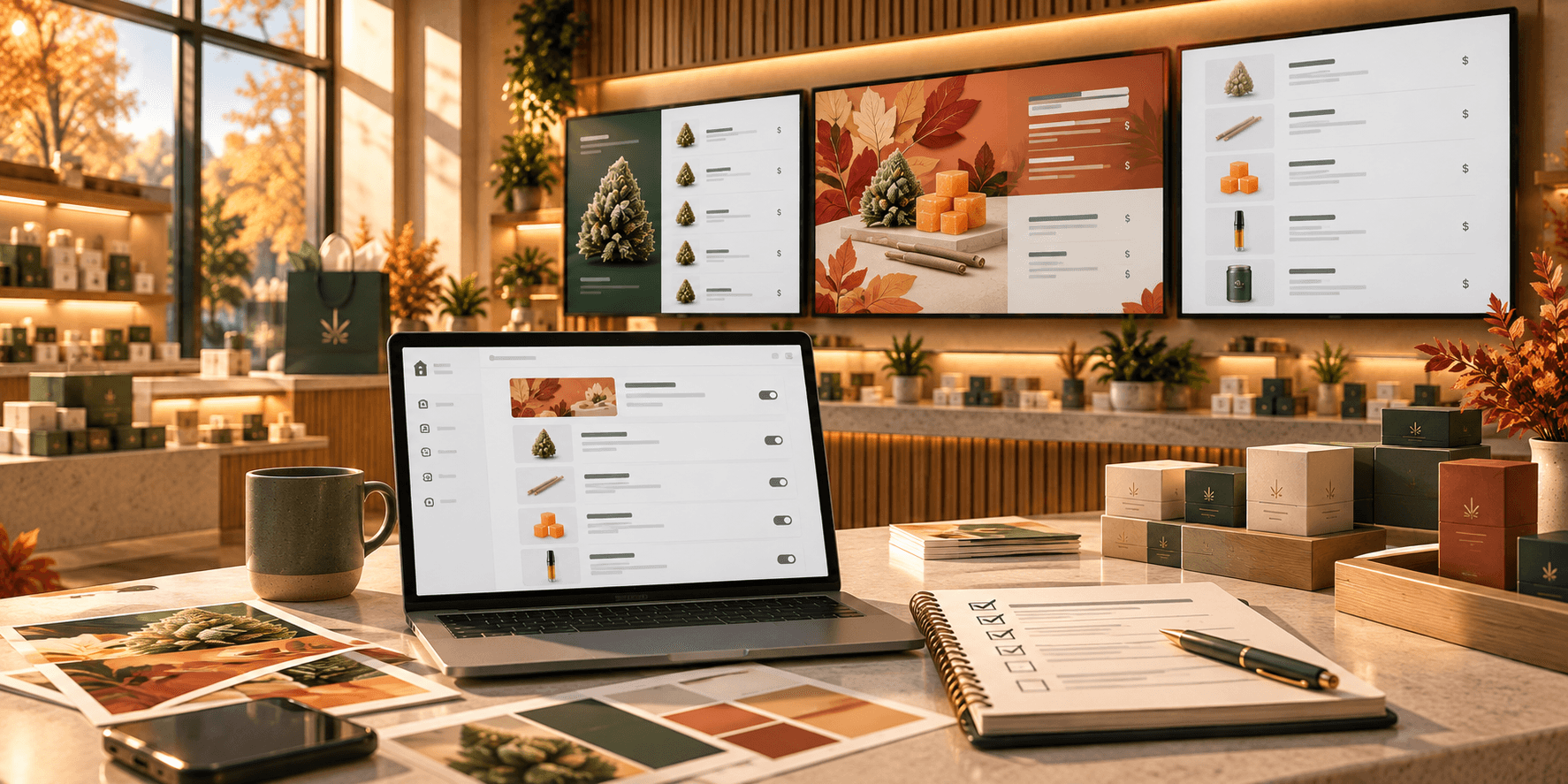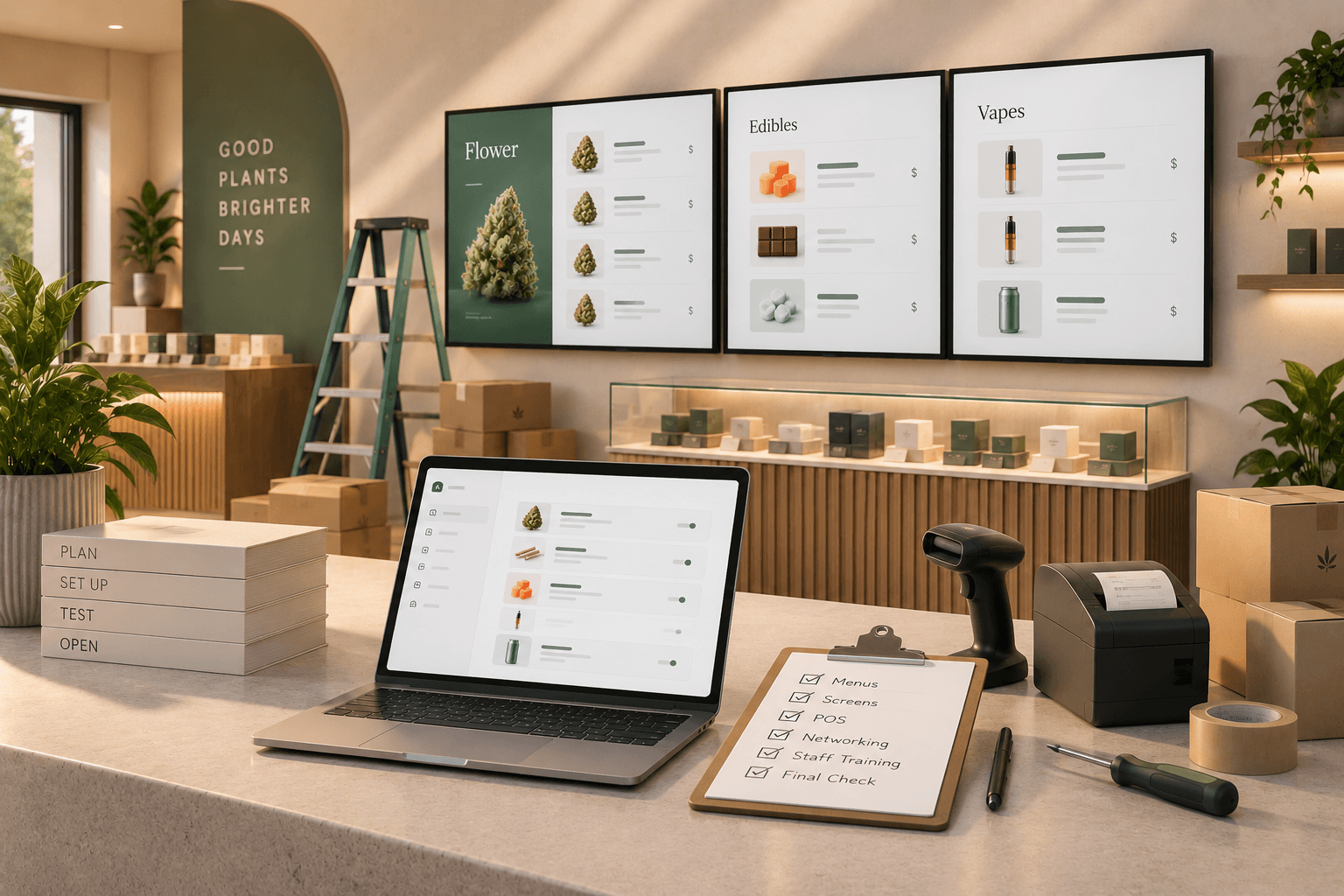

Opening a dispensary comes with a long list of decisions.
There is the space itself, product merchandising, staff preparation, checkout, signage, security, customer flow, and all the technology that keeps the store running.
Digital menus are only one part of that system, but they touch several important parts of the customer experience. Customers need to see what you sell, understand prices and product details, and navigate the menu without unnecessary confusion.
The best time to test all of that is before opening day.
Use this dispensary opening checklist to prepare your digital menus, screens, and in-store technology before the first customers walk through the door.
1. Map the customer journey through the store
Before deciding where screens should go, walk through the dispensary as if you were a customer.
Start at the entrance and follow the path a customer will take through the store.
Ask:
- Where will customers first look for product information?
- Where are they likely to stop and browse?
- Where will they compare products and prices?
- Which areas could become crowded?
- What information will customers need before reaching the counter?
This helps you decide where digital menu boards will actually be useful.
A screen should have a clear purpose. Adding TVs simply because there is an empty wall does not necessarily improve the experience.
2. Decide what each screen needs to do
Not every display needs to show the same content.
A screen near the entrance might introduce major product categories or featured items. Screens closer to the counter may need to prioritize detailed product information and pricing.
If your dispensary has several displays, define the job of each one before building your menus.
For example:
- Entrance screen: featured products or new arrivals
- Main menu screens: product categories and pricing
- Counter screen: products customers commonly compare before purchasing
- Secondary screen: promotional or branded content
The exact setup will depend on your store layout and assortment.
What matters is that each screen has a reason to be there.
3. Choose and install your display hardware
Do not leave screen installation until the last few days before opening.
Mount displays early enough to test them in the actual retail environment.
Check:
- Viewing height
- Viewing distance
- Screen size
- Glare from windows and lighting
- Power access
- Cable placement
- Network connectivity
- Visibility from customer areas
A menu that looks great while standing directly in front of a TV may be difficult to read from the position where customers will actually see it.
Test your displays from several points throughout the store.
4. Build your product catalog
Once your screens are planned, prepare the information that will appear on them.
Start by building a clean product catalog.
Depending on your menu, that may include information such as:
- Product name
- Product type
- Strain information
- THC and CBD percentages
- Available sizes
- Pricing
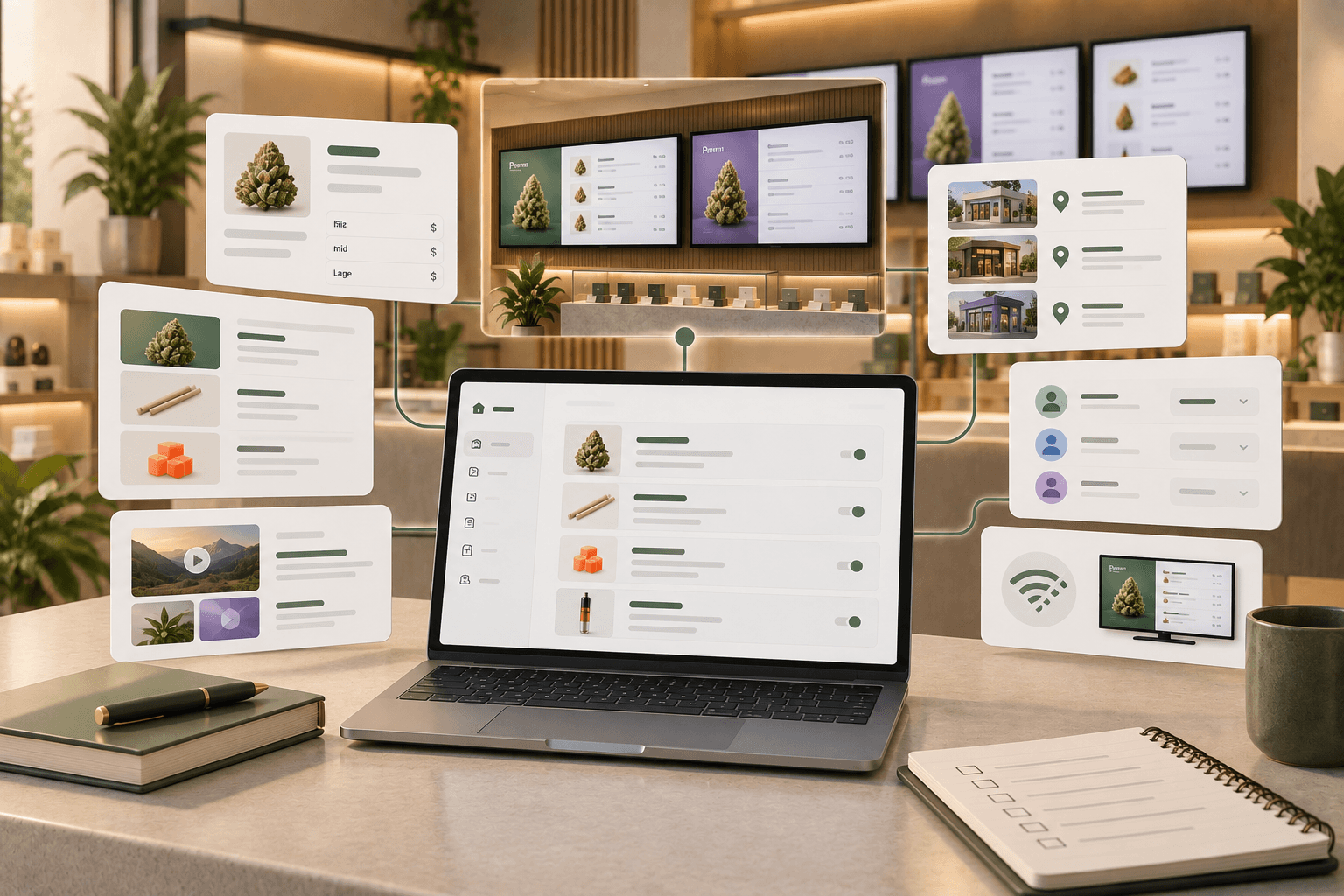
Trikome includes a product catalog designed for cannabis menus, including product types, strain information, and flexible pricing by size.
Before opening, review your catalog carefully for inconsistent names, missing prices, duplicate products, and formatting differences.
A clean catalog makes the menus built from it much easier to manage.
5. Organize products into useful collections
A complete product catalog is useful for your team, but customers may not want to browse every item at once.
Collections can create more focused groups.
For example:
- Staff Picks
- New Arrivals
- Featured Products
- Flower
- Edibles
- Vapes
Trikome lets dispensaries organize products into collections that can then be used within menus.
Think about collections from the customer's perspective.
They should make browsing easier, not simply create another layer of organization.
6. Build your digital menu pages
Once your products are organized, decide how they should appear on screen.
Avoid trying to fit your entire dispensary onto a single page.
Digital menu boards are viewed from a distance, so readability matters more than maximizing the amount of information on each screen.
Trikome menus can use rotating pages containing product collections, images, and videos. Page duration and arrangement can also be configured.
That gives you room to divide information into more manageable sections.
For example, your rotation might include:
- Featured products
- Flower
- Pre-rolls and vapes
- Edibles
- New arrivals
The right structure depends on your assortment and how customers shop in your store.
7. Check menu readability from the sales floor
Do not approve your menu from a laptop.
Put it on the actual TV.
Then stand where customers will stand.
Can you read product names without squinting?
Are prices easy to find?
Can you understand the category at a glance?
Does each page stay visible long enough to read?
Is anything important too close to the edge of the screen?
A menu can look polished in a design preview and still fail in the physical store.
Opening preparation should include testing the menu in the environment where it will actually be used.
8. Prepare your images and video
Digital displays give you room to use more than product lists.
You might want to include product photography, promotional visuals, educational content, or branded media.
Prepare those assets before opening so staff are not searching through random folders when the first promotion needs to go live.
Trikome includes a media library for uploading images and videos that can be used across menus.
Keep your media organized and use it intentionally.
Visual content should support the menu, not compete with the information customers need to make a purchase decision.
9. Connect and name every screen
Once your menus are ready, connect the physical displays.
Trikome's setup follows three basic steps: build the menu, link the TV with a simple code, and send the menu live to the connected display.
If your dispensary uses several screens, give devices clear names.
Instead of:
- TV 1
- TV 2
- TV 3
Use names that describe their location or purpose:
- Entrance Menu
- Flower Wall
- Checkout Menu
Clear naming becomes much more useful when someone needs to update or troubleshoot a particular display later.
10. Test your internet and offline behavior
Do not assume the store's internet connection will always behave perfectly.
Test your network before opening and make sure you understand what happens to important store technology if connectivity is interrupted.
For digital menus, check whether existing content can continue displaying offline.
Trikome supports offline playback. Previously synchronized menu content is cached locally so screens can continue displaying it during a temporary internet outage.
New updates still require connectivity to reach the screen, but the existing menu does not have to disappear simply because the connection drops.
That is worth testing before opening day rather than discovering it during a busy shift.
11. Test the rest of your store technology together
Your dispensary will likely rely on more technology than its digital menu boards.
The exact systems vary by store and jurisdiction, but your pre-opening tests may need to include:
- Point-of-sale hardware
- Payment equipment
- Receipt printers
- Barcode scanners
- Customer-facing displays
- Internet and Wi-Fi
- Security systems
- Staff devices
- Digital signage
Do not test each system only in isolation.
Run through realistic customer scenarios from beginning to end.
The goal is to find problems while the store is still empty, not while customers are waiting.
12. Confirm who is responsible for menu updates
Technology works better when ownership is clear.
Before opening, decide who is responsible for maintaining the digital menu.
Who adds new products?
Who changes prices?
Who updates collections?
Who changes promotional content?
Who checks that screens are displaying correctly?
Trikome does not automatically synchronize your product catalog or inventory with a POS system. Product and pricing information entered into Trikome needs to be kept current by your team.
Make that responsibility part of your store workflow from the beginning.
13. Train staff before opening day
Do not make opening day the first time employees see the systems they will use.
Give staff time to become familiar with the technology and understand what to do when something changes.
For digital menus, staff should at least know:
- Who is allowed to make menu changes
- How product information is maintained
- Which menu belongs on each screen
- Who to contact if a display goes offline
- How to identify incorrect or outdated menu information
Not every employee needs administrative access to every system.
But everyone should know how to recognize a problem and who is responsible for fixing it.
14. Run a mock opening
One of the most useful things you can do before a grand opening is operate the store as if customers were already there.
Have staff walk through realistic scenarios.
Browse the menu from the entrance.
Ask someone to find a particular category.
Compare products on the digital menu.
Move through the sales floor.
Complete a test transaction using your normal store systems.
Then deliberately introduce a few changes.
Update a price. Change a featured product. Check a different menu page. Confirm that the correct information appears where you expect it.
A mock opening gives your team a chance to find small problems before they become customer-facing problems.
15. Do a final screen check before opening
Your last digital menu review should happen on the actual screens.
Use a simple checklist:
- Every screen powers on correctly
- Every device is connected to the intended menu
- Product names are correct
- Prices have been reviewed
- Product sizes are correct
- Categories and collections are organized
- Text is readable from the customer viewing area
- Menu pages rotate at a comfortable pace
- Images and videos display correctly
- Staff know who handles updates
- Offline behavior has been tested
- Device names clearly identify each screen
Then walk away from the counter and check everything again from the customer's perspective.
Opening day is the beginning, not the finish line
A grand opening checklist helps you get the store ready, but your systems need to keep working after opening week.
Products will change. Prices may change. Promotions will end. New products will arrive. Screens may be moved or added.
Build those changes into your normal operating routine.
Review your digital menus regularly. Remove outdated content. Check that pricing and product information remain current. Make sure every screen is still serving a useful purpose.
Trikome gives cannabis retailers a straightforward way to build digital menus using products, collections, images, and videos, connect those menus to TV screens, and manage updates through the platform.
The technology should support the store, not make opening one more complicated.
Prepare it early, test it in the real space, give your team a clear process, and make sure the information customers see on opening day is ready when they are.