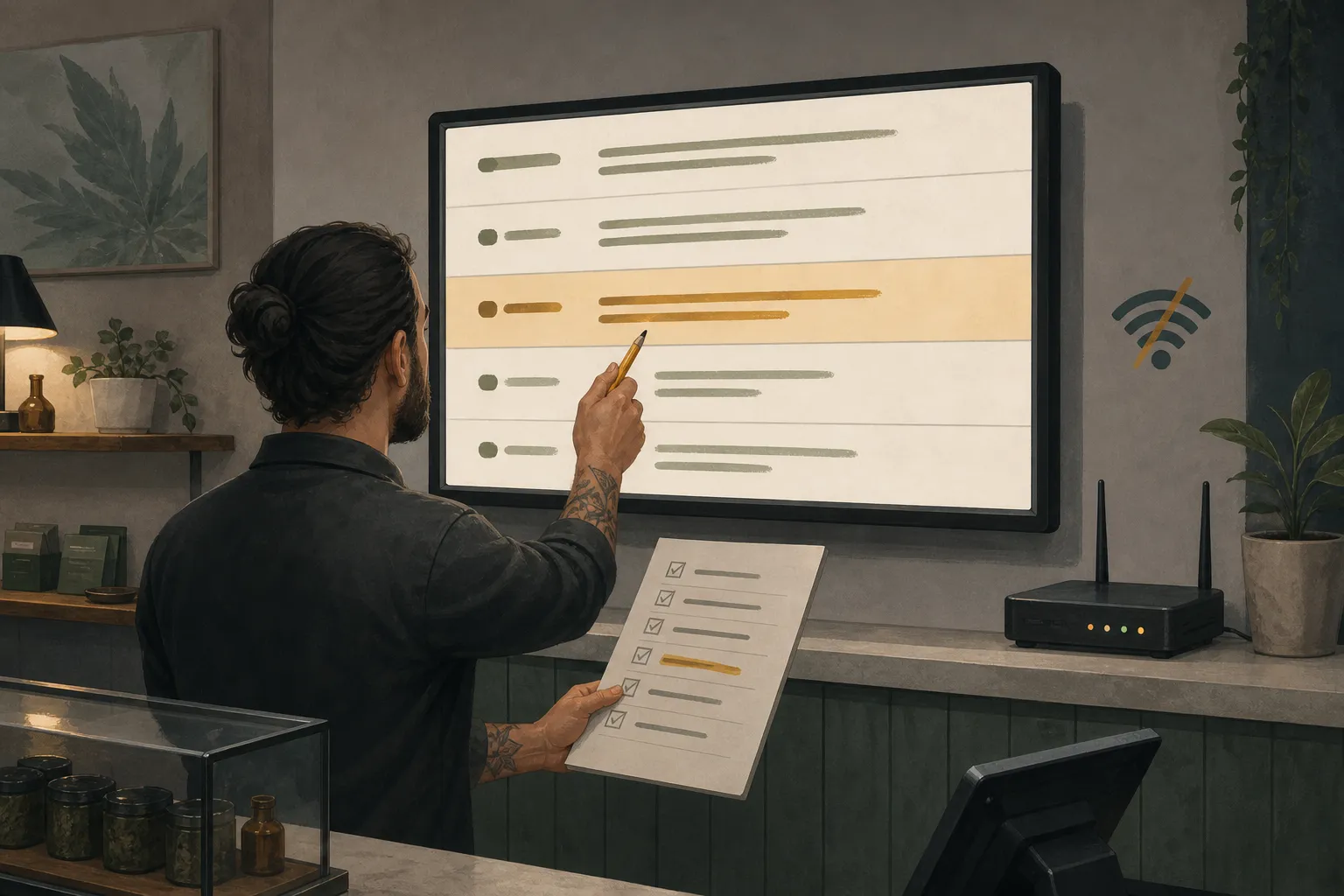

Some digital menu boards keep playing previously saved content when Wi-Fi or internet service drops. Others may stop displaying content. The answer depends on your menu-board software, player and setup, so confirm your provider’s offline behavior rather than assuming it works.
For dispensary staff, an outage creates two separate checks: Is the menu still visible, and is the information still current? A screen can keep rotating through its pages while showing an old price or a product that should no longer be listed.
Use the checks below during an interruption and again after the connection returns. They apply whether your provider supports cached playback or you need another way to communicate current menu information.
What happens to a digital menu board when Wi-Fi drops?
A menu board that supports offline playback may continue showing content saved locally on its player. That player might be a separate device connected to the TV or an app running on the TV itself.
But “offline” does not identify the whole problem:
- The player may have lost its local Wi-Fi connection.
- The store’s Wi-Fi network may still be available while its internet service is down.
- The TV, player or app may have a separate problem, including loss of power.
Cached playback can help during a connectivity interruption. It does not keep a TV running without power or guarantee that an app will recover from a fault. A blank screen is not proof of an internet outage, just as a visible menu is not proof of a working connection.
What cached playback can and cannot do
A cache is a saved local copy of content. Instead of fetching everything over the internet each time it appears, a player can use content it has already stored.
Offline playback is a provider-specific capability. For example, DigitalSignage.com says its screens keep playing when the internet goes down. That statement describes its system, not every digital menu board.
Trikome screens cache their menus and keep playing if the internet drops, with a connection warning. That supports continued playback during an internet interruption, but it is not a guarantee of uninterrupted operation.
Previously downloaded content
Offline playback depends on what the player has already saved. Check your provider’s documentation or ask support which parts of a menu are cached, including product-list pages, images and videos.
Do not assume that a newly uploaded file has finished downloading or that every media type behaves the same way. Also confirm what happens if the app closes or the player restarts while offline. Continuing an already-running menu and starting it again after power loss are different situations.
A controlled test of your actual screens and menus can help confirm how the documented behavior applies to your setup.
Price and product changes
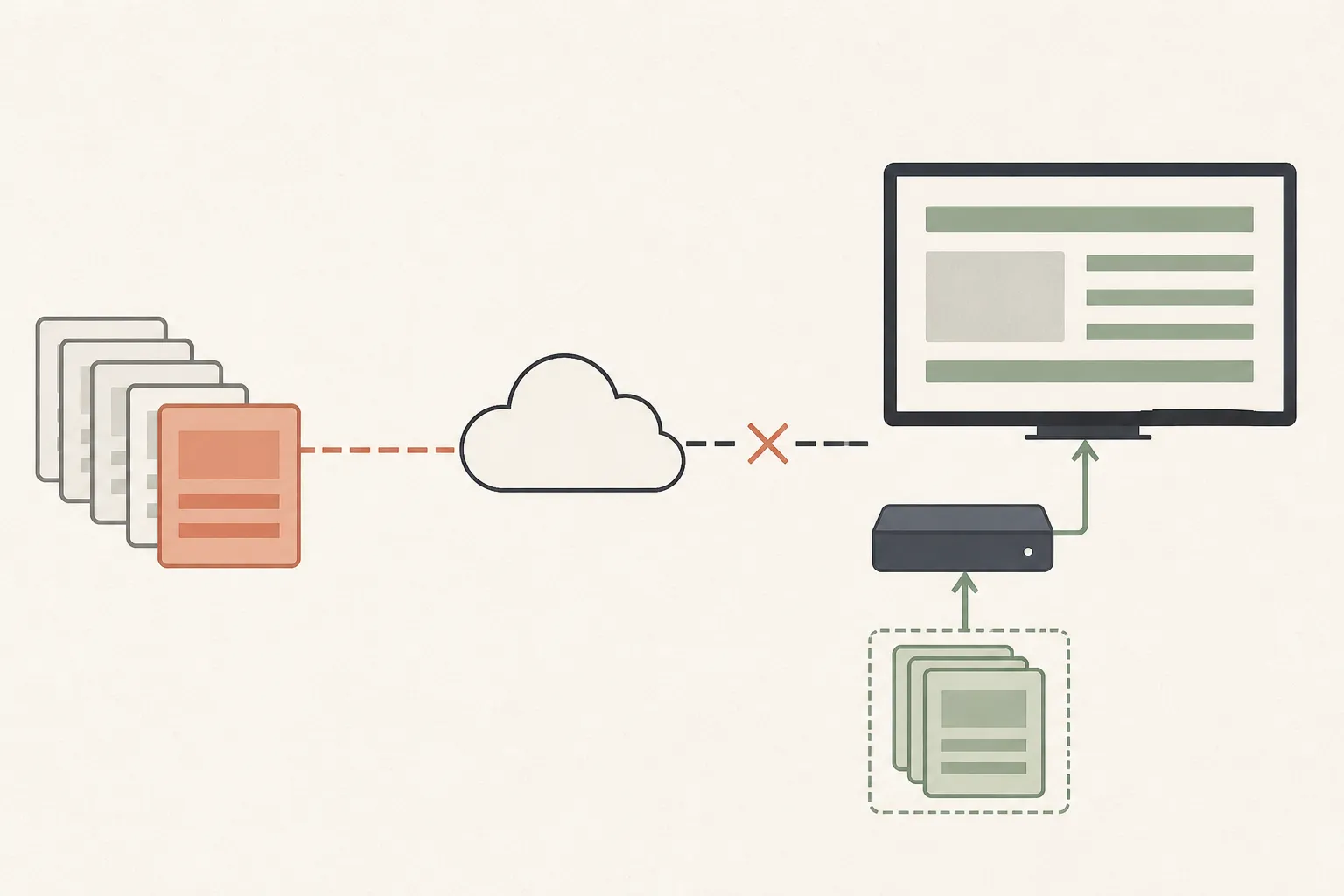
A screen may continue showing its saved menu while a dashboard change waits for connectivity to return.
Editing a menu in a dashboard is different from delivering that edit to a screen. If the screen’s connection is unavailable, a new change cannot reach it through that connection.
For example, suppose staff correct a price in the dashboard while a screen is offline. The dashboard may show the correction, but the screen may still show the previously saved price. A saved edit does not confirm that customers can see it.
Compare the visible menu with your current store records. Do not assume a product disappears from the screen when it becomes unavailable.
What to check during an outage
Keep two separate notes for each affected screen: whether it is displaying the menu and whether the displayed information is correct. This prevents “still playing” from becoming the stopping point of your check.
Check the screen, player and connection
Work through these steps before treating the problem as an internet outage:
- Confirm that the TV has power and is turned on.
- If you use a separate player, confirm that it also has power and that the TV is on the correct input.
- Check that the menu app is open. Observe whether pages rotate as expected and note any warning or error message.
- Check the player’s network settings to see whether it is connected to the store’s local network.
- Check whether that network has internet access. A Wi-Fi connection alone does not establish this.
- If your provider offers screen status and you can access the dashboard, review its online/offline indicator and last check-in time. Record that time alongside what you see on the TV.
Dashboard status is a useful clue, not a visual inspection. An offline screen may still be playing cached content. An online status does not prove the TV is on the right input or displaying the correct menu.
Avoid restarting a player merely to see whether that helps unless you know how your system behaves when starting offline. Follow your provider’s troubleshooting instructions.
Verify prices and products
Compare the screen with the records your store uses to confirm current prices and product availability. Pay particular attention to changes made since the screen’s last check-in, if that information is available.
Check:
- Product names, sizes and their matching prices.
- Products that should have been removed from the menu.
- Promotional pages or messages that are no longer current.
- Each rotating page, rather than only the page visible when you arrive.
If a price is wrong, making another dashboard edit may not resolve the customer-facing problem while the screen remains offline.
Use your store’s approved fallback for communicating current information. That might be a staff-managed printed menu or direct assistance using current store records. If you cannot correct an inaccurate display, follow your store’s procedure to stop customers relying on it. Check the fallback for accuracy too.
What to check after the connection returns
Do not close the incident when the router reconnects. Check each affected screen:
- Confirm that the player has connectivity again.
- Review online status and the latest check-in, if your provider offers them.
- Watch the menu through a full rotation and confirm that all expected pages appear.
- Compare displayed prices and products with current store records, including changes made during the outage.
- If an expected change is missing, follow the provider’s refresh instructions and inspect the screen again.
For Trikome, the dashboard uses screen heartbeats to report screen status and last check-in. Connected screens check for menu changes about every 30 seconds, and Update Device forces an immediate refresh once connectivity is restored. Staff still need to enter and maintain products and prices in Trikome: it runs alongside an existing POS but does not connect to it or sync inventory. Check both the dashboard information and the menu customers can actually see.
If one screen recovers and another does not, keep the second screen on the checklist. Recovery on one player does not establish what happened on the others.
Prepare for the next interruption
Before testing, ask your provider:
- Which menu content is saved locally, and how can we confirm it has finished downloading?
- What happens to edits made while a screen is offline?
- What do the status indicator and last check-in actually tell us?
- How does the player receive changes after reconnecting?
- What happens if the app restarts or the player loses power while offline?
Then arrange a controlled test at an appropriate time, with the person responsible for your network. Avoid disrupting other store systems. Test internet loss and loss of the player’s local Wi-Fi connection separately rather than treating them as the same condition.
Record what stays visible, whether page rotation continues and which warnings appear. If practical, make a harmless, non-price edit to a test menu while the player is offline. After reconnecting, verify when that edit appears. Treat power-loss and restart behavior as separate questions to confirm with the provider and test safely.
Leave staff a short outage sheet with these fields:
| Item | What staff should record |
|---|---|
| Affected screen | Location or screen name |
| Visible behavior | Playing, blank, frozen or showing a warning |
| Last check-in | Time shown by the provider, if available |
| Information check | Incorrect prices, sizes, products or messages |
| Fallback | Approved method and staff member responsible |
| Recovery check | Menu visually verified by whom and when |
Keep that sheet with the fallback menu or store troubleshooting instructions. Assign someone to verify each affected screen after service returns, including any screen that never stopped playing.
See also screen status and last check-in.
See also enter and maintain products and prices in Trikome.
See also ask your provider.