
Can dispensary menu software work without POS integration?
Yes, if staff can maintain separate product and price records and check the displayed board against the POS. A standalone digital menu board works alongside your existing POS, but someone must own the extra work. A price change in one system does not change the other.
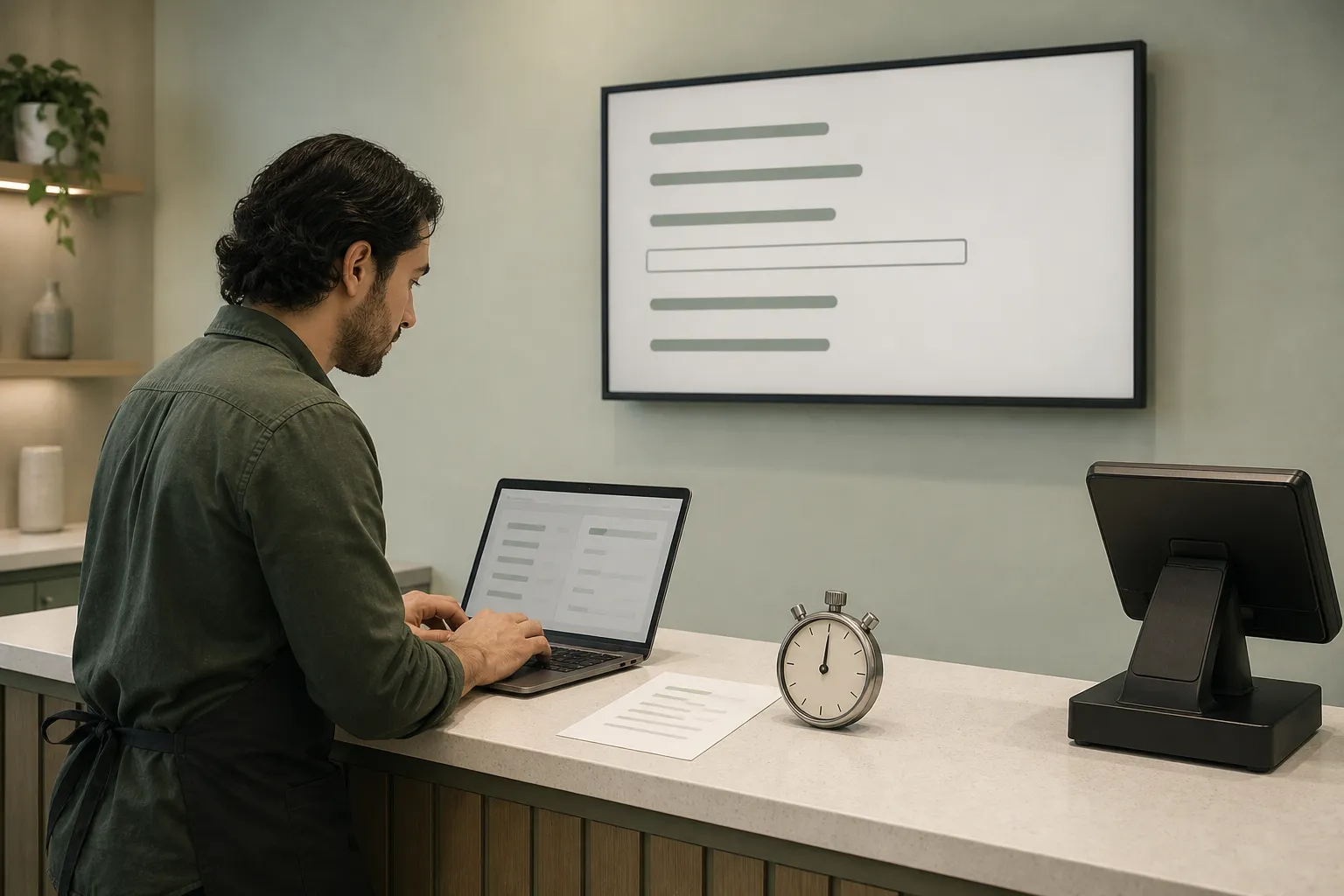
Before choosing, record a representative week of menu changes and time the full update process, from checking the POS to inspecting the TV. Include a sold-out product and an offline screen. Those results give you a better basis for comparing software than a feature list alone.
If updates fit the team's available time and have reliable coverage, separate entry may be manageable. Frequent changes, missed handoffs or long correction delays are reasons to investigate a connected option.
What changes when the menu board is separate from the POS?
You maintain separate records. Staff enter products and prices in the menu software, then revise them when store information changes. Plan for staff to handle sold-out products too, unless the vendor demonstrates another mechanism.
| Decision point | Standalone board | POS-connected option: what to verify |
|---|---|---|
| Product entry | Staff enter products separately. | Which products and fields transfer? |
| Price changes | Staff edit the board after the POS changes. | Do size-specific prices transfer, and how quickly? |
| Sold-out products | Staff take action in the menu software. | What triggers removal, and what exceptions remain? |
| Review | Staff compare the board with the POS. | Which failures or mismatches need review? |
| Workload | Separate entry, corrections and screen checks. | Setup, exception handling and remaining checks. |
| Cost | Subscription, hardware and staff upkeep. | Subscription, hardware, any connection fees and remaining upkeep. |
For example, Trikome lets staff enter products and prices in a web dashboard, group products into collections, and build menus that rotate product lists and image or video pages on in-store TVs. It works alongside an existing POS but does not connect to it or automatically sync inventory.
Keep the buying scope clear: an integration advertised for an online menu does not establish support for in-store TVs. Ask vendors to demonstrate the display you need.
Who owns menu accuracy on each shift?
Name an update owner and a backup. Assign a reviewer too, even if a small team needs one person to perform both tasks. Make review an explicit step rather than assuming an edit is correct because it was saved.
Agree on what triggers an update: a new product, a price change, a sold-out product or a correction. Give staff one place to report discrepancies, and include unfinished corrections in the shift handoff.
The workflow should cover checking products, sizes and prices against the POS, confirming availability through the store's normal process, editing the board and inspecting the displayed result. For a sold-out product, confirm how staff remove it using the software's available controls. Do not assume it disappears automatically.
Decide what staff should do while incorrect information remains visible. That may mean temporarily taking the affected menu out of view under your store's procedures. Document who can make that decision.
How much manual upkeep can your team handle?
Log a representative week before committing. Include new products, price corrections and availability changes, not just planned merchandising edits. If the week was unusually quiet, note that limitation.
Use a shared worksheet:
| Field | What staff record |
|---|---|
| Change and location | Product, size, price or availability change; affected store and screens |
| Ownership | Person notified, editor, reviewer and any backup involved |
| Active work | Time spent checking, editing and inspecting the display |
| Waiting | Delays before work began, handoffs and screen-update waits |
| Completion | When the displayed menu was confirmed correct |
| Problem | Missed field, access issue, offline screen or other obstacle |
Compare active work with the staff time available on the shifts when changes occur. Review correction delays separately. The workload may fit the weekly labor budget but still fail when the only person with access is absent.
Run a timed update-and-review test
Choose a representative price or product change. Start timing when staff begin checking the source information. Stop only after they confirm the corrected information on the actual TV, watching through the relevant menu rotation.
Repeat with a sold-out product, then have the backup complete the workflow. Use a controlled test that will not leave customers looking at deliberately incorrect information.
Record active work separately from waiting. Include time spent finding the right product, checking sizes, editing, reviewing and waiting for the relevant page to appear.
Estimate upkeep by multiplying the week's observed changes of each type by the corresponding tested work time, then adding routine reviews. Avoid treating every change as identical: adding a product may take more work than correcting one price. Keep handoff and update delays visible alongside the labor estimate.
What should you verify about screens, staff access and cost?
Ask vendors to demonstrate support for your exact TV or player, how staff link a TV, what device status means, and how edits reach screens. Check staff permissions and plan limits before expanding a trial.
An online indicator or recent check-in is not visual proof of what customers see. Treat connection status and inspection of the displayed menu as separate checks.
Trikome illustrates what to verify in a standalone trial:
- A TV links to a store with a four-digit code at
trikome.co/link. - The dashboard shows online/offline status and last check-in, not a view of the displayed screen.
- Screens cache their menus and keep playing during an internet interruption, with a connection warning. They cannot receive new edits while disconnected.
- Connected screens check for menu changes about every 30 seconds. Update Device forces an immediate refresh.
- Free requires no credit card and includes one store, one device and one menu, with a watermark on screens and no team invites.
- Premium costs $30 per store per month or $300 per store per year. It supports multiple stores in one account, unlimited devices and menus, and team invites with manager or employee roles. Each store has its own products, menus and screens.
Test an update, an internet interruption and reconnection
Run this test on a trial screen without disrupting store operations:
- Inspect the current menu and record the dashboard's device status.
- Disconnect only the test screen's internet connection. Observe what continues playing and any warning shown.
- Make a controlled menu edit while the screen is offline.
- Restore connectivity and record when the edit appears on the TV.
- Check dashboard status separately from the displayed result.
Cached playback preserves the previous menu, not its accuracy. If a price changes or a product sells out during the interruption, the old information may remain visible. Write down the temporary response staff should use until they can confirm the correction.
Does the plan fit each store's workflow?
For each location, list the required menus, screens, update owner, backup and staff access. Verify whether products and menus are maintained separately by store and whether permissions match local responsibilities.
Calculate costs for that actual setup. Include the quoted subscription, verified hardware or connection fees, and the staff upkeep measured in your test. Compare monthly and annual commitments on the same basis. A low subscription price does not tell you how much work the store must absorb.
When is a POS-connected option worth investigating?
Investigate when the log shows burdensome duplicate entry, correction delays, missed availability changes or dependence on one person. There is no universal acceptable number of changes. Use your staffing coverage and measured workload.
Ask the connected-software vendor to demonstrate:
- Compatibility with your exact POS and in-store digital menu boards.
- The fields that transfer, including sizes and prices.
- What causes a sold-out product to disappear and what makes it return.
- Update timing and what happens during a connection failure.
- Manual overrides, conflicting edits and exception review.
- The full cost for your stores, screens and required connections.
Request current primary documentation to support the demonstration. Do not rely on an old integration announcement or assume online-menu support includes TVs.
Compare the verified connected workflow with the standalone workflow, including the review work that remains. A connection may reduce separate entry, but it is not proof that every field is correct or every exception is handled.
What must be checked before you choose?
Use these decision criteria:
- Measured upkeep fits available staff time, with coverage on each shift.
- Update and outage tests left no unresolved problem that prevents normal use.
- Store, screen and staff-access limits fit the intended setup and budget.
- Any connected alternative demonstrated the required fields and exception handling.
- Applicable menu-content, pricing, warning and display requirements were checked with the state regulator or a legal adviser. Requirements vary by location; this checklist is not legal advice.
Record whether separate upkeep is manageable with the assigned coverage or a connected option needs further evaluation. Keep any unresolved test result beside that decision, with a person responsible for resolving it.
See also group products into collections.
See also Screens cache their menus and keep playing during an internet interruption.
See also For each location, list the required menus, screens, update owner, backup and staff access..
See also Calculate costs for that actual setup..